When engaging in a digital marketing service such as SEO or Google Ads, one of the first things you’ll be asked for is access to your Google Analytics account.
If you already have an account and unsure how to add users, or what permissions you should be giving them, here’s a step by step guide below.
Step 1: Logging Into Google Analytics
First, you need to be logged into the Google account that is connected with your Google Analytics account.
Either log in first and go to: https://analytics.google.com
Or go to https://analytics.google.com and log in from there.
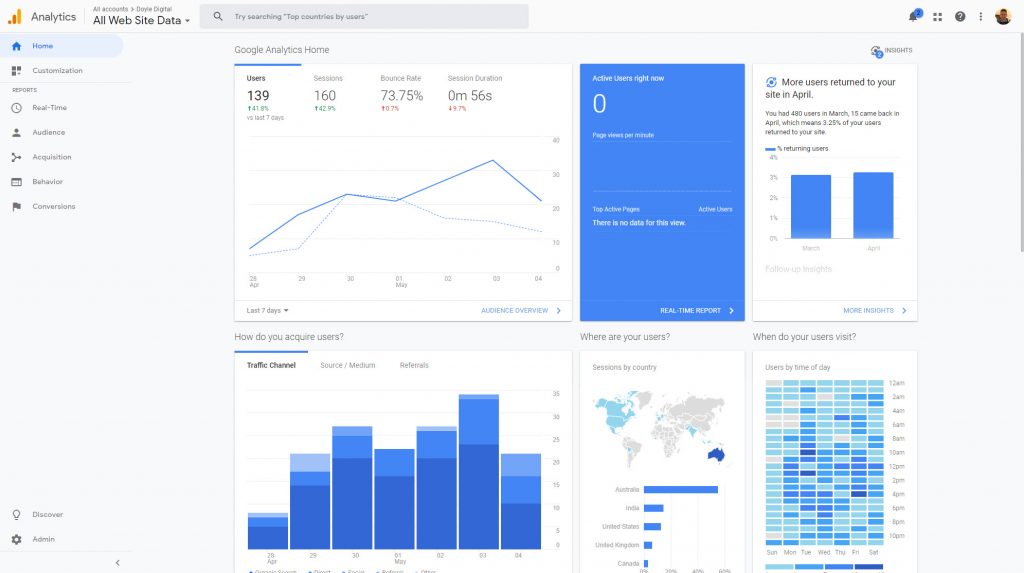
Once you’re logged into the right account, you should see a dashboard that looks similar to this:
Step 2: Go To The Admin Panel
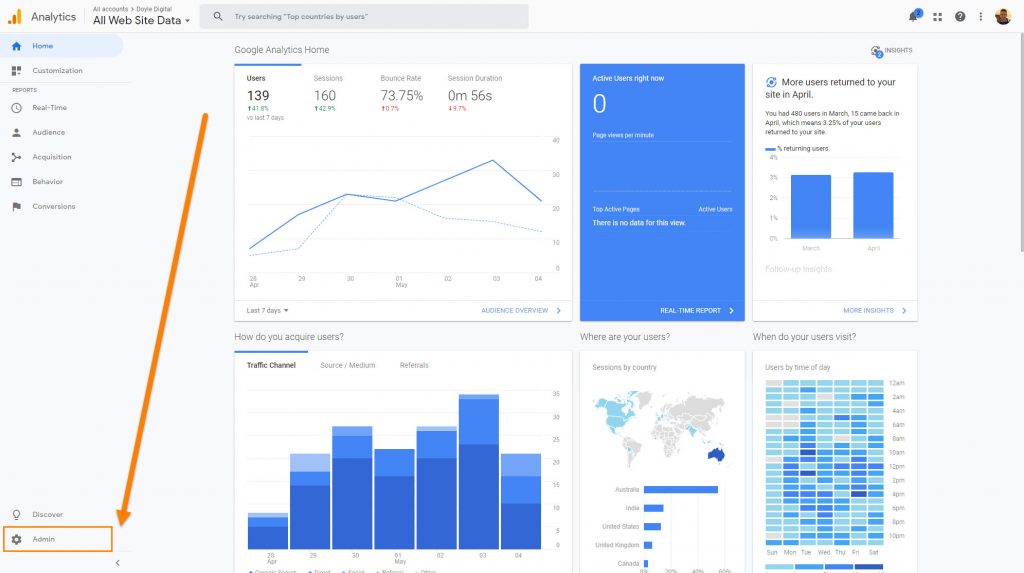
In the bottom left of your screen, there is a little cog icon with and the words “Admin”.
Click on that to go to the Admin Panel.
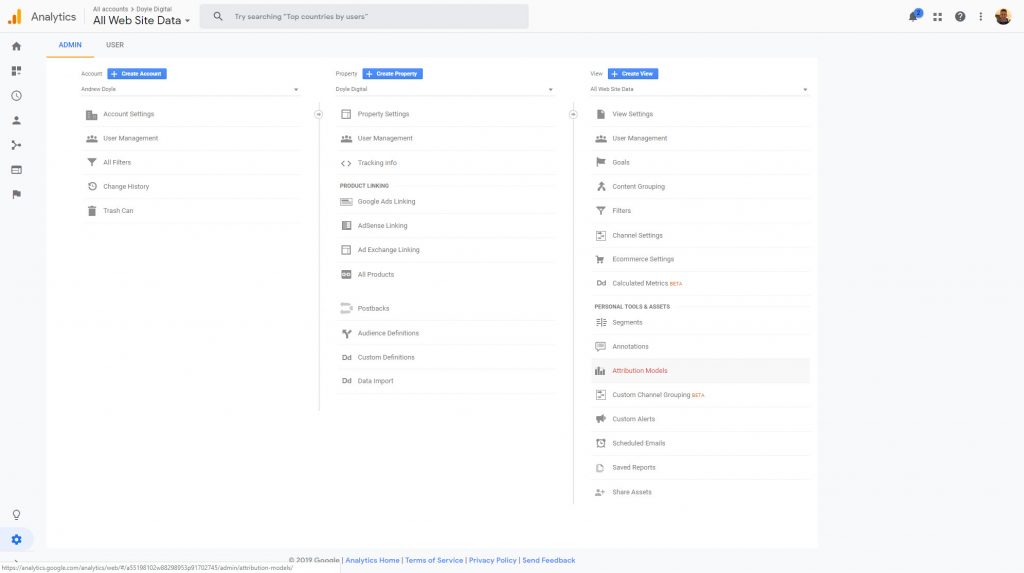
Once you’ve clicked on the Admin tab, you should see your Admin panel like so:
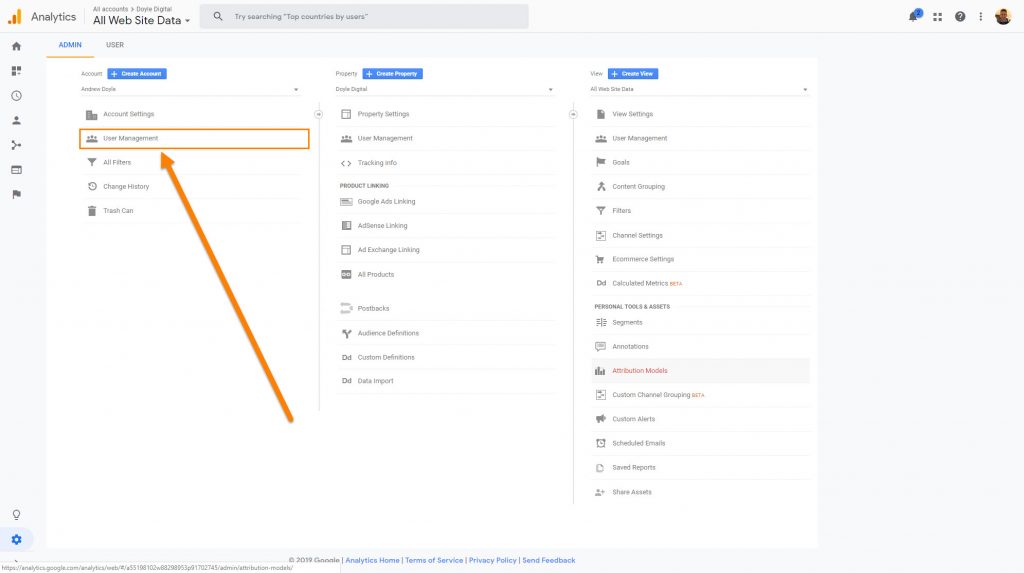
Step 3: Click User Management
You will see three different panels from left to right.
Account, Property and View.
Typically you will want to give access to the Property level at the bare minimum if you want a digital marketing provider to be able to do things such as link up your Google Ads account to your Google Analytics account.
In this example, we’re going to provide access to the Account level (which is the highest level of access to the account).
If you wish to provide access at the Property or View level, just click “User Management” under the Property panel or the View panel, respectively.
The steps going forward are exactly the same, regardless of which level you’re providing access to.
Step 4: Click Add Users
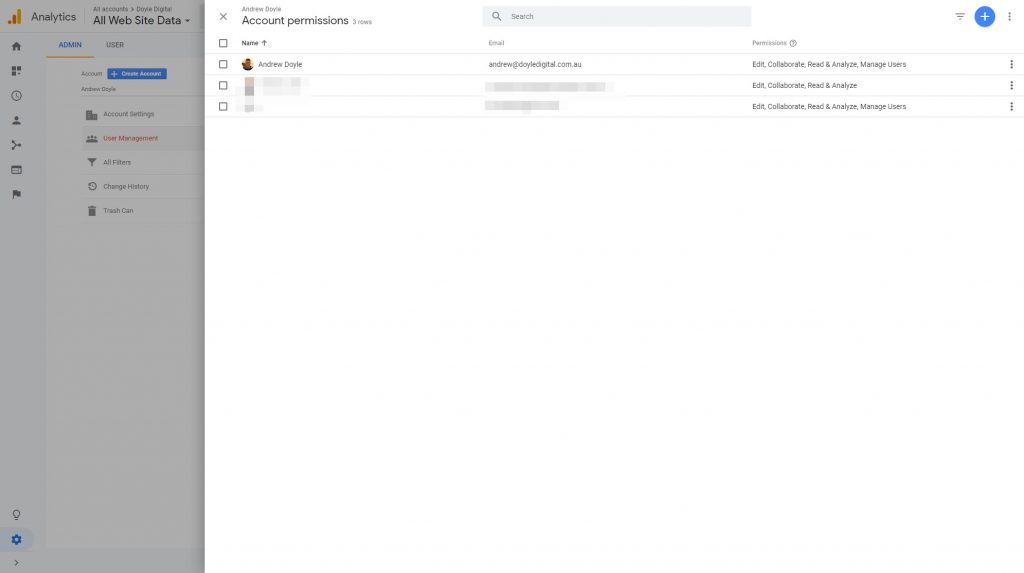
Once you’ve clicked on User Management (regardless of whether it was under Account, Property or View), you will be greeted with this screen:
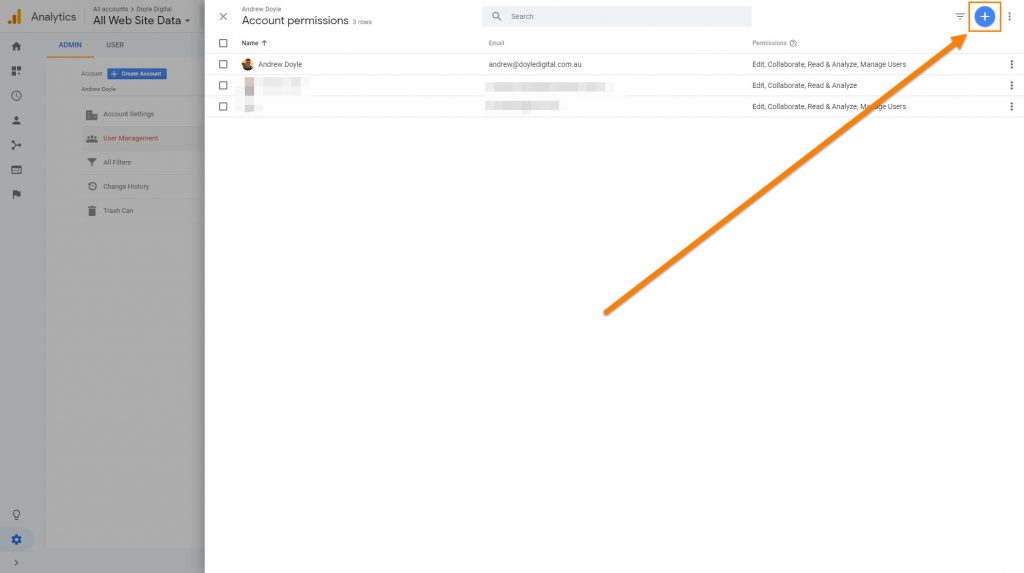
Now, there is a small blue circle in the top left with a white + on the middle.
We’re going to click on that:
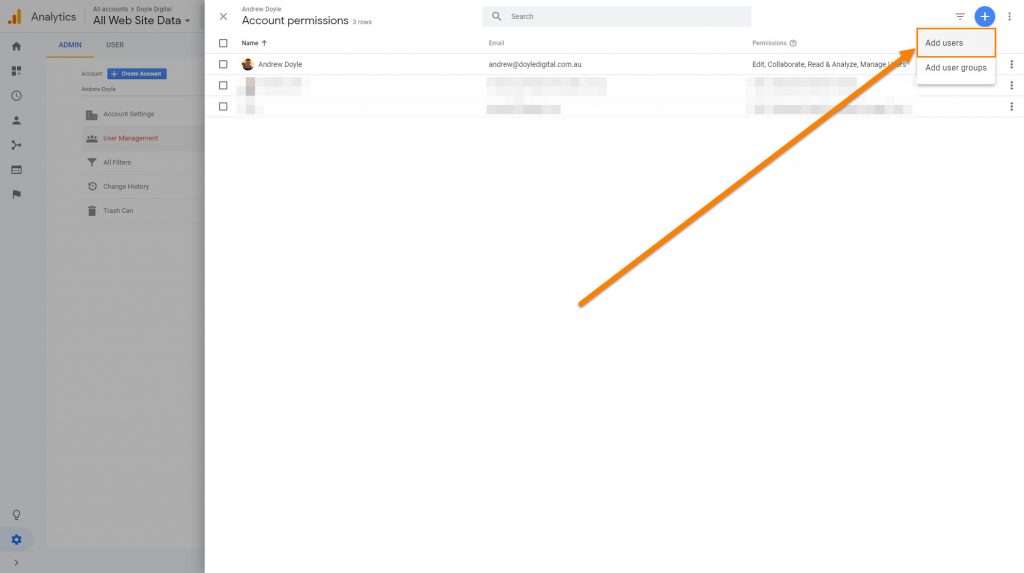
And on the little drop down box, we’ll click on “Add Users”
Step 5: Choose Permissions
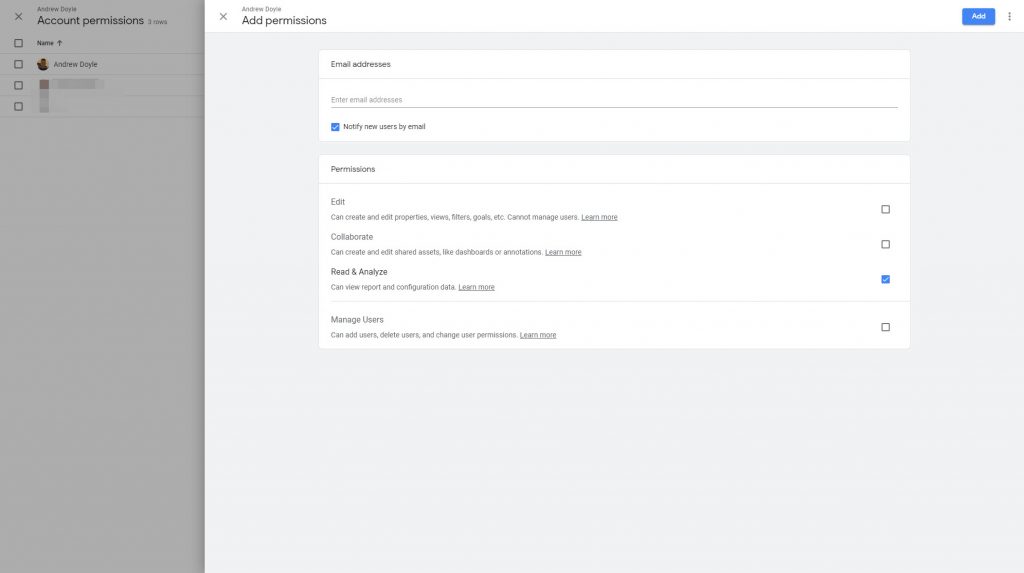
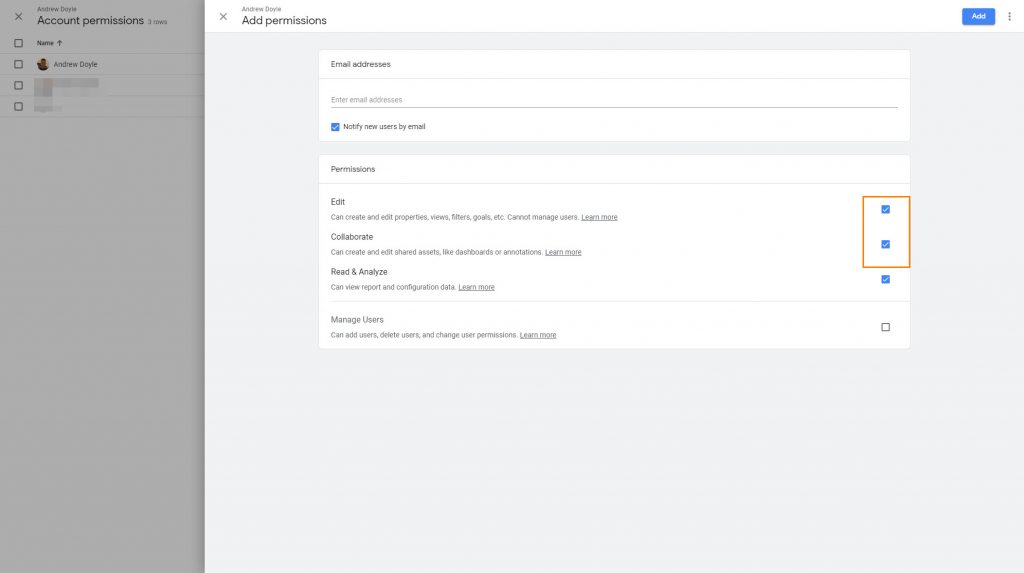
Once you’ve clicked Add Users, you will be greeted with this screen:
This is where we need to pay attention a little bit to ensure we’re giving the right level of access here.
In most cases, you want to tick the “Edit” and “Collaborate” boxes which will allow your digital marketing provider to perform all the tasks that they need to.
Warning: If you click on the “Manage Users” box, you are giving this new user the ability to add any other users that they like and allows them to remove users, including yourself.
“Manage Users” at the Account level should only really be provided to people within your own organisation and not to external providers as a security measure.
Some SEO companies may demand full admin access. They don’t need it.
If an SEO claims that they need to have full admin access to access Google Search Console, there are other methods that they can use to claim it.
Step 6: Add E-Mail Address
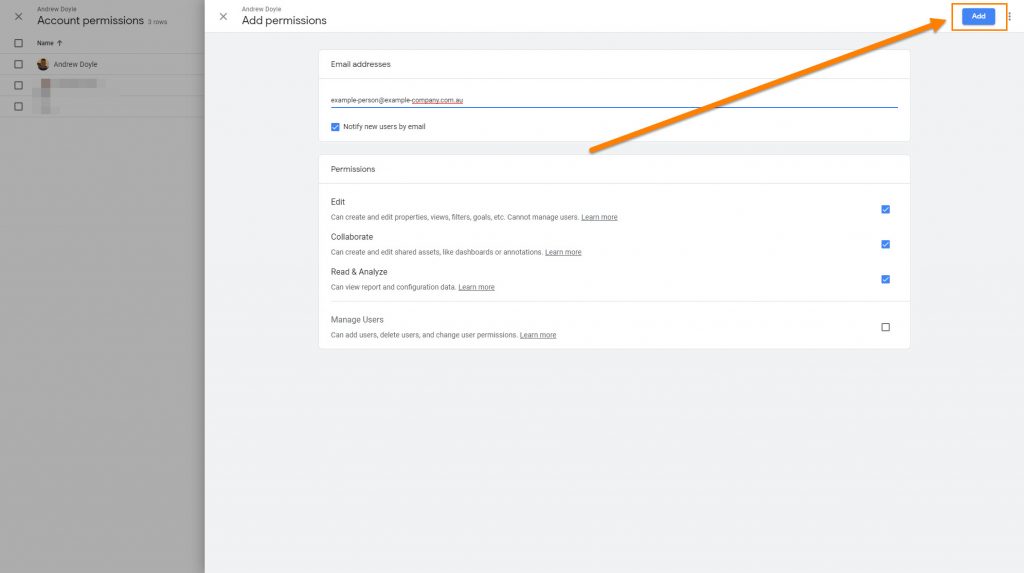
Once you have selected which permissions you would like to provide, go ahead and enter their e-mail address in the line towards the top.
Once you have entered the e-mail address, you just need to click the “Add” button to finalise everything.
The “Add” button is at the top right of your screen.
Providing that there is a Google account associated with that e-mail address, that’s everything that you need to do to provide access to Google Analytics!
Error: This E-Mail Doesn’t Match A User Account
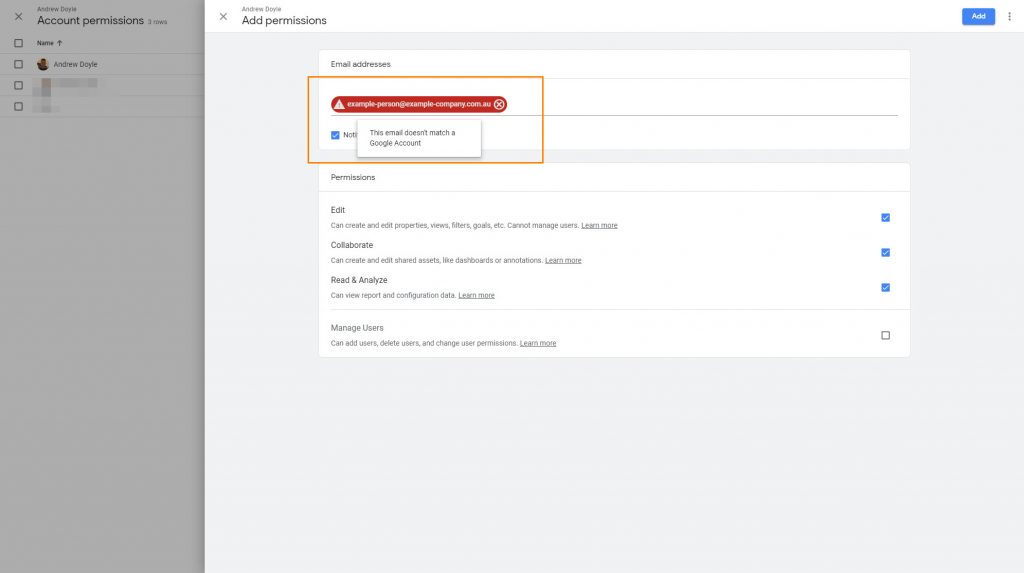
If you have entered an e-mail address and the e-mail address is surrounded in a red box, it can mean either one of two things.
The e-mail address you entered may have been wrong or have typos
The e-mail address doesn’t have a Google account associated with it
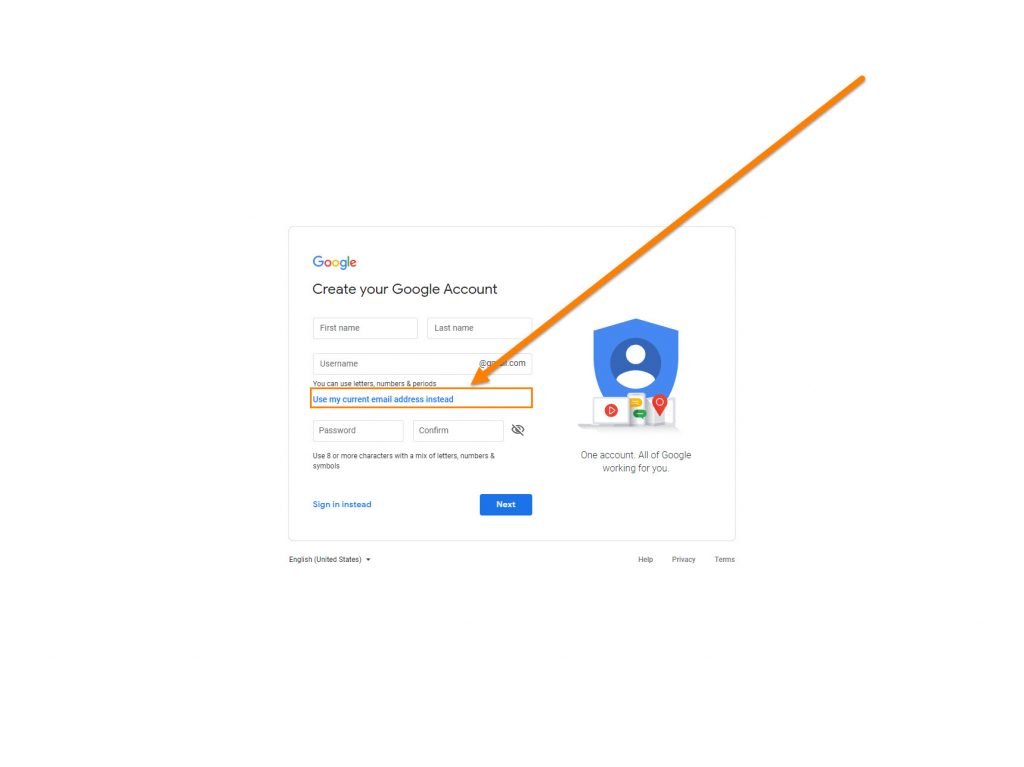
If there is no Google account associated with the e-mail address, the user will have to sign up to Google using that e-mail address.
You don’t have to create a Gmail address to sign up to Google.
Even if you have a Hotmail or business e-mail account, you can still sign up to Google’s services with that e-mail address.
To sign up to a Google account with your existing e-mail address, follow the prompts to Sign In, Create An Account and then click here on the sign up page:
Popular posts
How to write unique SEO content for location pages
Most small businesses operate in a particular area around where their store is physically located. These business owners often want to rank for their whole city. This approach has no benefit to themselves, their customers, or their ability to rank as Google wises up to businesses targeting areas that they don’t actually exist in. So does that […]
Even if you’re a thriving business with heaps of happy and loyal customers, getting them to leave a review on Google is often challenging. The thing is, reviews on Google are super important from both an SEO point of view but also from a general marketing stand-point. If you are looking for a service provider […]
Why 1st isn’t always the best position in Google Ads
“You’ve gotta be on position 1 in Google Ads, right?” Being 1st is great Organically, because who cares how many clicks you get, right? They’re free! But in AdWords? It’s another story all together because if you want to be 1st, you’re going to have to pay for that. Take a look at this graph below […]